





You tap a network name, enter a password, and just like that, you’re online. No cables across the room, no phone jack, no visible “connection” at all. For most people, Wi-Fi feels like invisible magic.
Underneath, though, Wi-Fi is a specific wireless networking technology with clear rules, standards, and limits. Understanding the basics helps you pick the right Wi-Fi router, improve a weak Wi-Fi signal, and stay safe on public Wi-Fi networks.
This guide walks through what Wi-Fi is, how Wi-Fi works, different types of Wi-Fi networks, what makes Wi-Fi secure, and practical ways to get faster, more reliable wireless internet at home or in an apartment.
What is Wi-Fi?
In simple terms, Wi-Fi is a wireless networking technology that uses radio waves to connect devices to a local network and, from there, to the internet. Laptops, smartphones, tablets, smart TVs, and IoT devices use Wi-Fi to talk to a wireless router or access point, which then sends their traffic out over a wired broadband connection.
Technically, Wi-Fi is built on the IEEE 802.11 family of standards. Those standards define how wireless local area networks (WLANs) send and receive data, so that devices from different manufacturers can all connect to the same Wi-Fi network.
A few quick facts that clear up common myths:
- Wi-Fi is the wireless part of your network, not the internet itself.
- Wi-Fi is a trademarked term created by the Wi-Fi Alliance for products that pass interoperability tests.
When you see a list of wireless networks on your phone, you’re seeing nearby Wi-Fi networks broadcasting their names so your device can join one of them.
How Does Wi-Fi Actually Work?
When you connect to Wi-Fi at home or in a café, your device and the Wi-Fi router are talking over radio waves.
Radio Bands and Channels
Wi-Fi uses specific frequency ranges in the radio spectrum. Most Wi-Fi networks operate on:
- 2.4 GHz band – Wider coverage and better penetration through walls, but more interference from other networks and devices.
- 5 GHz band – Higher speeds and more non-overlapping channels, but shorter range.
- 6 GHz band (Wi-Fi 6E / Wi-Fi 7) – Newer, higher-frequency band with lots of clean spectrum for high-capacity, low-latency wireless.
Each band is divided into channels. If your neighbors’ routers are all using the same Wi-Fi channel, the radios have to take turns, and your wireless internet feels slow or inconsistent.
Routers, Access Points, and Your Local Wi-Fi Network
In a typical home Wi-Fi setup, your ISP runs a cable or fiber line into your home. That connects to a modem, and the modem connects to a Wi-Fi router or a combined modem/router gateway. The router:
- Creates your local Wi-Fi network – the SSID you see in your Wi-Fi list.
- Sends and receives data over Wi-Fi to your devices.
- Forwards that traffic over Ethernet or fiber to the wider internet.
In larger spaces like offices, schools, or apartment buildings, you’ll often see separate wireless access points (APs). These APs plug into switches and are managed centrally, so you can have many Wi-Fi radios working together as one big wireless network.
Packets and Addressing
Every web page, video, or message you send on Wi-Fi is broken into data packets. Wi-Fi radios modulate these packets onto radio waves and demodulate them on the receiving end. Each device has a MAC address and an IP address, so routers know exactly where to send each packet.
The end result: a Wi-Fi network that lets multiple devices share the same broadband connection without physical cables.
Are Wi-Fi and Internet the Same Thing?
Short answer: no. Wi-Fi and internet are related but not the same.
- Wi-Fi is the wireless technology that connects your devices to a local network using radio waves.
- The internet is the global network of websites, servers, apps, and services that your local network connects to.
- A broadband connection (cable, fiber, fixed wireless, etc.) is what links your local network to your internet service provider.
You can have perfect Wi-Fi inside your home but no internet if your broadband link is down. You can also have working internet to your modem but bad Wi-Fi if your router is misconfigured or poorly placed.
When troubleshooting, it helps to ask: “Is the problem with my Wi-Fi signal inside the building, or with my internet connection going out to my provider?”
Types of Wi-Fi Networks
You interact with different kinds of Wi-Fi networks every day, even if they all show up the same way in your device list.
Home Wi-Fi networks
Your home Wi-Fi network is usually a small wireless LAN created by a single router. It connects:
- Phones, laptops, and tablets
- Smart TVs and streaming boxes
- Smart speakers, cameras, and other IoT devices
This network generally only covers your house or apartment, and maybe a bit of the yard or balcony, depending on your router placement and building materials.
Business and campus Wi-Fi
In offices, schools, and large campuses, Wi-Fi has to handle many more users and devices at once. These enterprise Wi-Fi networks typically use:
- Multiple access points across floors and buildings
- Centralized controllers to manage configuration, security, and updates
- Separate SSIDs for employees, guests, and internal systems
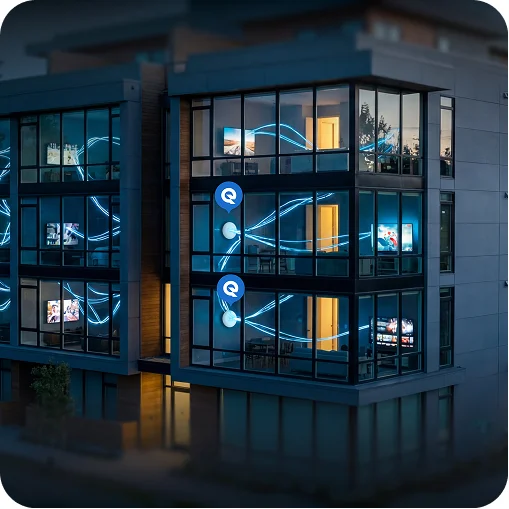
This kind of architecture is also common in multifamily buildings and MDUs, where each resident needs their own private Wi-Fi, but the entire property runs on one professionally designed wireless network.
Public Wi-Fi hotspots
Public Wi-Fi hotspots are the networks you find in cafés, hotels, airports, libraries, and shopping centers. Businesses offer these wireless networks so customers can browse the web, stream, or work while on site.
Public Wi-Fi is convenient, but not all hotspots are equally secure. We’ll come back to that when we talk about Wi-Fi security.
Mesh Wi-Fi systems
In larger homes or spaces with thick walls, a single router may not reach every room. Mesh Wi-Fi systems use multiple nodes that work together as one network, handing your device off behind the scenes as you move around.
Mesh Wi-Fi is a popular way to improve Wi-Fi coverage and reduce dead zones without running Ethernet to every room.
Wi-Fi generations: Wi-Fi 4, 5, 6, 6E, and 7
You’ll often see labels like Wi-Fi 4, Wi-Fi 5, Wi-Fi 6, Wi-Fi 6E, and Wi-Fi 7 when you shop for routers or phones. These are simplified names for different versions of the 802.11 standard. Each new generation improves capacity, speed, and reliability.
At a high level:
- Wi-Fi 4 (802.11n) made Wi-Fi faster and more robust than early versions.
- Wi-Fi 5 (802.11ac) focused on high-speed wireless internet in the 5 GHz band, ideal for HD and 4K streaming.
- Wi-Fi 6 (802.11ax) improved efficiency in crowded environments like apartments or offices, letting access points serve more devices at once.
- Wi-Fi 6E brings Wi-Fi 6 into the 6 GHz band, opening a large amount of new spectrum for cleaner channels.
- Wi-Fi 7 (802.11be) is designed for multi-gigabit Wi-Fi speeds, ultra-low latency, and high-density environments such as MDUs, smart homes, and offices.
If you want a future-proof Wi-Fi router or managed Wi-Fi system, aim for Wi-Fi 6 or Wi-Fi 7 compatibility. They handle more devices and are better at dealing with interference and congestion.
Wi-Fi Security: How to Stay Safe on Wireless Networks
Because Wi-Fi is broadcast over radio waves, anyone in range can attempt to connect. That makes Wi-Fi security critical at home and in public.
Common Risks on Insecure Wi-Fi
On open or poorly secured Wi-Fi networks, attackers can:
- Join the network without permission
- Try to intercept unencrypted data
- Attempt to impersonate websites or services to steal logins
Agencies and vendors emphasize that Wi-Fi security means protecting both devices and data using strong encryption, access controls, and good habits.
Securing Your Home Wi-Fi Network
To keep your home wireless network safer:
- Change default admin logins. Routers arrive with default usernames and passwords that are easy to guess. Update both the admin login and the Wi-Fi password.
- Use modern encryption. In your router’s wireless security settings, choose WPA2-Personal or WPA3-Personal. Avoid outdated options like WEP, which can be cracked quickly.
- Create a guest Wi-Fi network. Put visitors on a separate SSID so they don’t have access to your main devices and file shares.
- Update firmware regularly. Router firmware updates fix security issues and improve performance. Check your router’s admin page or app for an auto-update setting.
- Use a VPN on untrusted networks. When you must use a random hotspot, a reputable VPN encrypts your traffic between your device and the VPN server, making eavesdropping much harder.
Safer Use of Public Wi-Fi
On open public Wi-Fi hotspots, people on the same network may be able to see or tamper with unencrypted traffic. To use public Wi-Fi more safely:
- Prefer hotspots that require a password and show WPA2/WPA3 in the connection details.
- Avoid logging into banking and other highly sensitive accounts on open Wi-Fi.
- Make sure sites use HTTPS, and consider using a VPN whenever you’re on hotel, airport, or café Wi-Fi.
If you travel a lot, a personal mobile hotspot using 4G/5G from your carrier can give you a private, secure Wi-Fi network on the go.
How to Improve Wi-Fi Speed and Coverage at Home
If you’re constantly asking “Why is my Wi-Fi so slow?” there are a few practical things you can try before upgrading your internet plan.
Optimize Your Router Placement
Wi-Fi signals struggle with concrete, brick, metal, and large bodies of water. For better coverage:
- Put the router in a central, open spot, not inside a cabinet or behind the TV.
- Avoid placing it right next to big appliances or thick structural walls.
- In multi-story homes, try positioning it near the middle of the house vertically as well as horizontally.
If you live in a dense apartment building, your router may be competing with dozens of other networks. Using the router’s “auto” channel feature or manually picking a less crowded channel can help.
Use the Right Wi-Fi Band
- Use 2.4 GHz when you need longer range and don’t care about maximum speed.
- Use 5 GHz or 6 GHz for high-speed wireless internet, gaming, large file uploads, and 4K streaming.
Many routers let you create separate SSIDs like “Home-2.4” and “Home-5G” so you can choose which band each device uses.
Add Mesh Wi-Fi or More Access Points
If you still have dead zones, it’s not always your broadband connection. It might be the layout of your home.
Mesh Wi-Fi kits and additional access points create more “anchors” for your devices to connect to, all under one network name. As you move around, your phone or laptop automatically connects to the closest node with the strongest Wi-Fi signal.
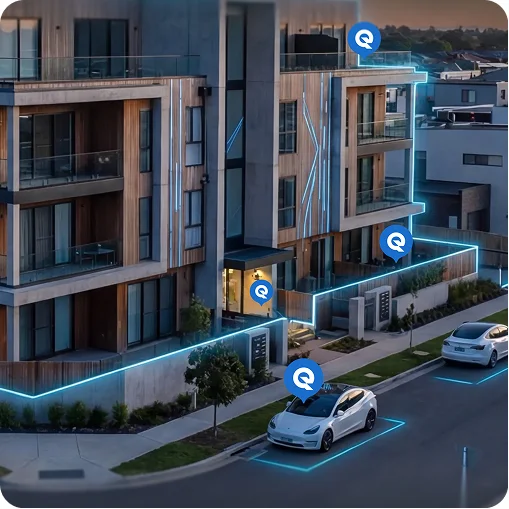
This same principle scales up to apartment buildings, MDUs, and communities, where multiple access points and professional design replace the “one router per unit” chaos.
Where Quantum Wi-Fi fits in
Everything in this guide applies to individual Wi-Fi networks in homes and small offices. But in multi-dwelling units (MDUs), HOAs, hotels, and large communities, Wi-Fi becomes much harder to manage. Dozens or hundreds of private routers fighting for the same channels cause interference, dead zones, and constant support tickets.
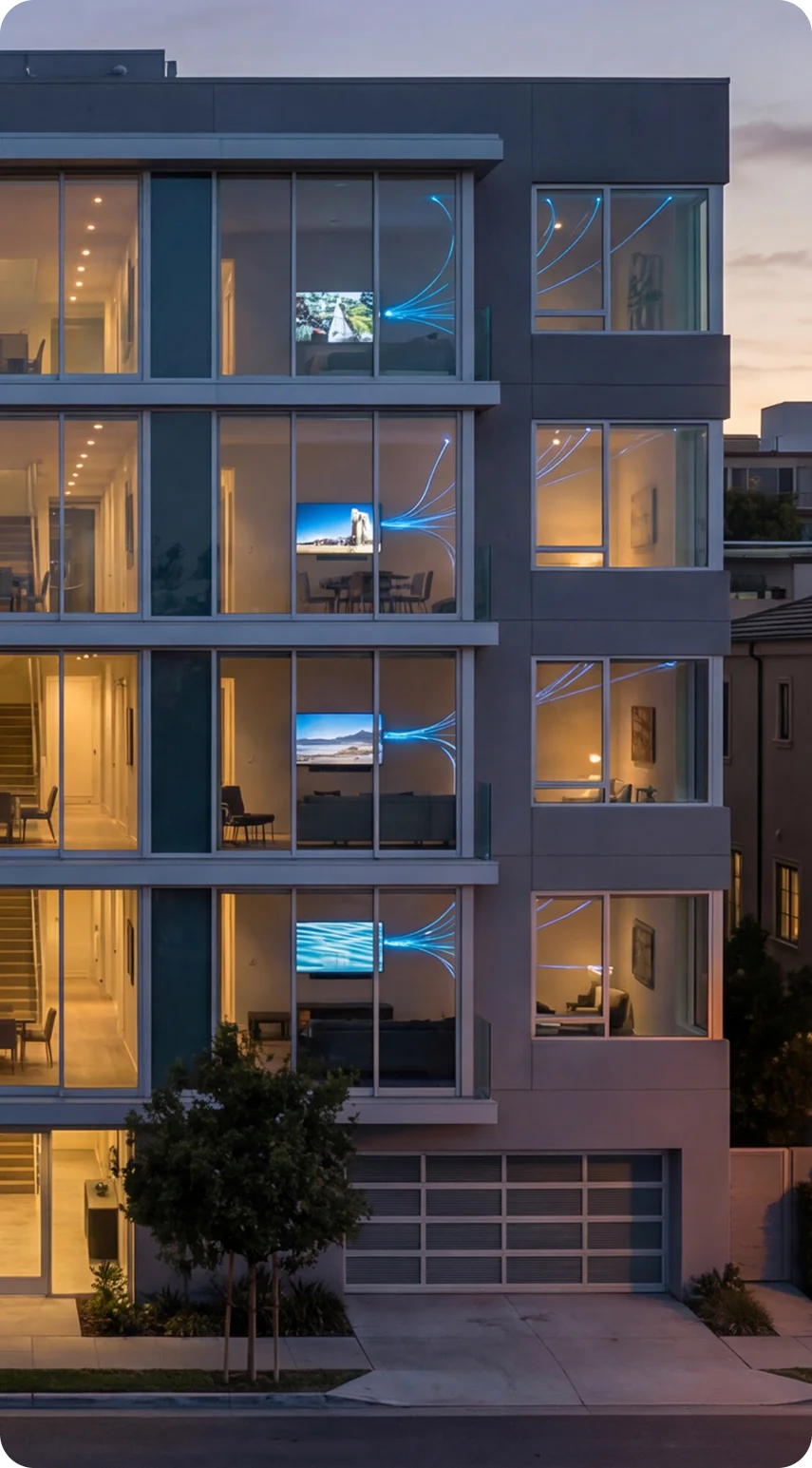
Quantum Wi-Fi approaches this differently. Instead of leaving every resident to figure out their own wireless network, Quantum Wi-Fi designs and operates a single, professionally engineered managed Wi-Fi network for the entire property. That network uses:
- Modern Wi-Fi 6 and Wi-Fi 7 access points placed throughout units and common areas
- Central management and monitoring to keep wireless internet fast and stable
- Private, secure Wi-Fi environments for each resident
Beyond the building, Quantum Wi-Fi hooks into a global footprint of more than 10 million hotspots, so residents can stay online easily when they travel.
If you manage an apartment building, HOA, or portfolio of properties and you’re tired of hearing “the Wi-Fi is bad here,” it may be time to treat Wi-Fi like real infrastructure instead of a random collection of routers. That’s where managed MDU Wi-Fi, and providers like Quantum Wi-Fi, make the difference.
Check if your property qualifies and get started with Quantum Wi-Fi here: Check Quantum Wi-Fi availability for your property